

Pay Kit iOS: Getting Started
Code language
To control and modify the Pay Kit iOS SDK, you can use the Swift language or the Objective-C language. The code examples and states on this page are in Swift.
See the Objective-C Examples and States section at the bottom of this page for code examples and states in Objective-C.
Prerequisites
- All integrations require a Client ID provided by Cash App (see Deliverables: Cash App Pay Partner Engineering)
- To authorize payments for a specific Merchant or Brand, you’ll need to create a Merchant or create a Brand using the Cash App REST APIs.
Step 1 Implement the Cash App Pay Observer Protocol
To receive updates from Pay Kit, you’ll need to implement the Cash App Pay Observer protocol. Your checkout view controller can conform to this protocol, or you can create a dedicated observer class.
The CashAppPayObserver protocol contains only one method:
Your implementation should switch on the state parameter and respond to each of the state changes. Below is a partial implementation of the most important states.
Some of these possible states are for information only, but most drive the logic of your integration. A full list of states to handle are listed in the table below:
States
You must update your UI in response to these state changes.
Terminal states
These states cannot transition further and attempting to action on a Customer Request that is in a terminal state will result in an error.
Error states
Informational states
Step 2 Implement URL handling
To use Pay Kit iOS, Cash App must be able to call a URL that will redirect back to your app. The simplest way to accomplish this is via Custom URL Schemes, but if your app supports Universal Links you can use those URLs as well.
Choose a unique scheme for your application and register it in Xcode from the Info tab of your application’s Target. For example, the TipMyCAP application that exercises the SDK functionality configures a scheme as follows:
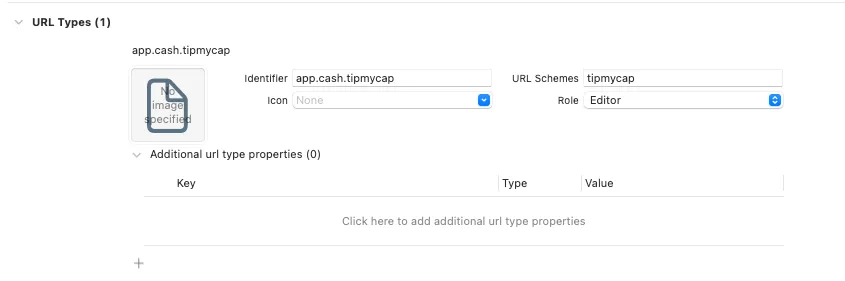
You’ll pass a URL that uses this scheme (or a Universal Link your app handles) into the createCustomerRequest() method that starts the authorization process.
When your app is called back by Cash App, post the CashAppPay.RedirectNotification from your AppDelegate or SceneDelegate, and the SDK will handle the rest:
Step 3 Instantiate Pay Kit iOS
When you’re ready to authorize a payment using Cash App Pay,
- Instantiate the SDK with your Client ID.
- The SDK defaults to point to the
.productionendpoint. For development, set the endpoint to.sandbox. - Add your observer to the SDK.
For example, from your checkout view controller that implements the CashAppPayObserver protocol, you might instantiate the SDK to be:
Step 4 Create a Customer Request
You can create a customer request as soon as you know the amount you’d like to charge or if you’d like to create an on-file payment request. You must create this request as soon as your checkout view controller loads, so that your customer can authorize the request without delay.
Example
To charge $5.00, your createCustomerRequest call might look like this:
Your Observer’s state changes to .creatingCustomerRequest, then .readyToAuthorize with the created CustomerRequest structure as an associated value.
Step 5 Authorize the Customer Request
Once the SDK is in the .readyToAuthorize state, you can store the associated CustomerRequest and display a Cash App Pay button. When the customer taps the button, you can authorize the customer request.
Example
Your app will redirect to Cash App for authorization. When authorization is completed, your redirect URL will be called and the RedirectNotification will post. Then the SDK will fetch your authorized request and return it to your Observer, as part of the change to the .approved state.
Unhappy Path
If the Customer does not have Cash App installed on their device then they will redirect to a webpage prompting them to download Cash App. In the event the customer does not download Cash App, then the SDK will remain in the polling state. The SDK does not handle this edge case and instead it is up to the implementor to set a reasonable timeout and treat the checkout as failed once that timeout is exceeded. It is suggested to dismiss any loading states and restart the Cash App Pay flow as to not block the customer from checking out.
Step 6 Pass Grants to the Backend and Create Payment
The approved CustomerRequest will have Grants associated with it that can be used with Cash App’s Create Payment API. Pass those grants to your backend and call the Create Payment API as a server-to-server call to complete your payment.