

Display the checkout widget
Use the checkout widget to display the Afterpay payment schedule on your website. There are three ways to use the widget:
-
Connected: Displayed after the checkout process, using an order token. If the order amount changes post-checkout, use the connected widget to update the payment schedule
-
Unconnected: Displayed before the customer starts the checkout process, with no order token—just an amount
-
With on file grant: Displayed before the customer places the order, using an alias from a grant
The widget is responsive and can fit into any container with a minimum width of 300px. You can render the widget into a target container on your page using JavaScript.
Connected widget
Use the connected widget on your checkout page after a customer completes the Afterpay checkout flow. This widget serves several purposes:
- Ensures that the customer sees and agrees to an accurate payment schedule.
- Verifies that the final amount charged matches what the customer was shown during checkout.
- Provides the merchant with important information, like the first payment amount.
- Informs the merchant if there are any barriers to purchase, such as exceeding the Afterpay payment limit.
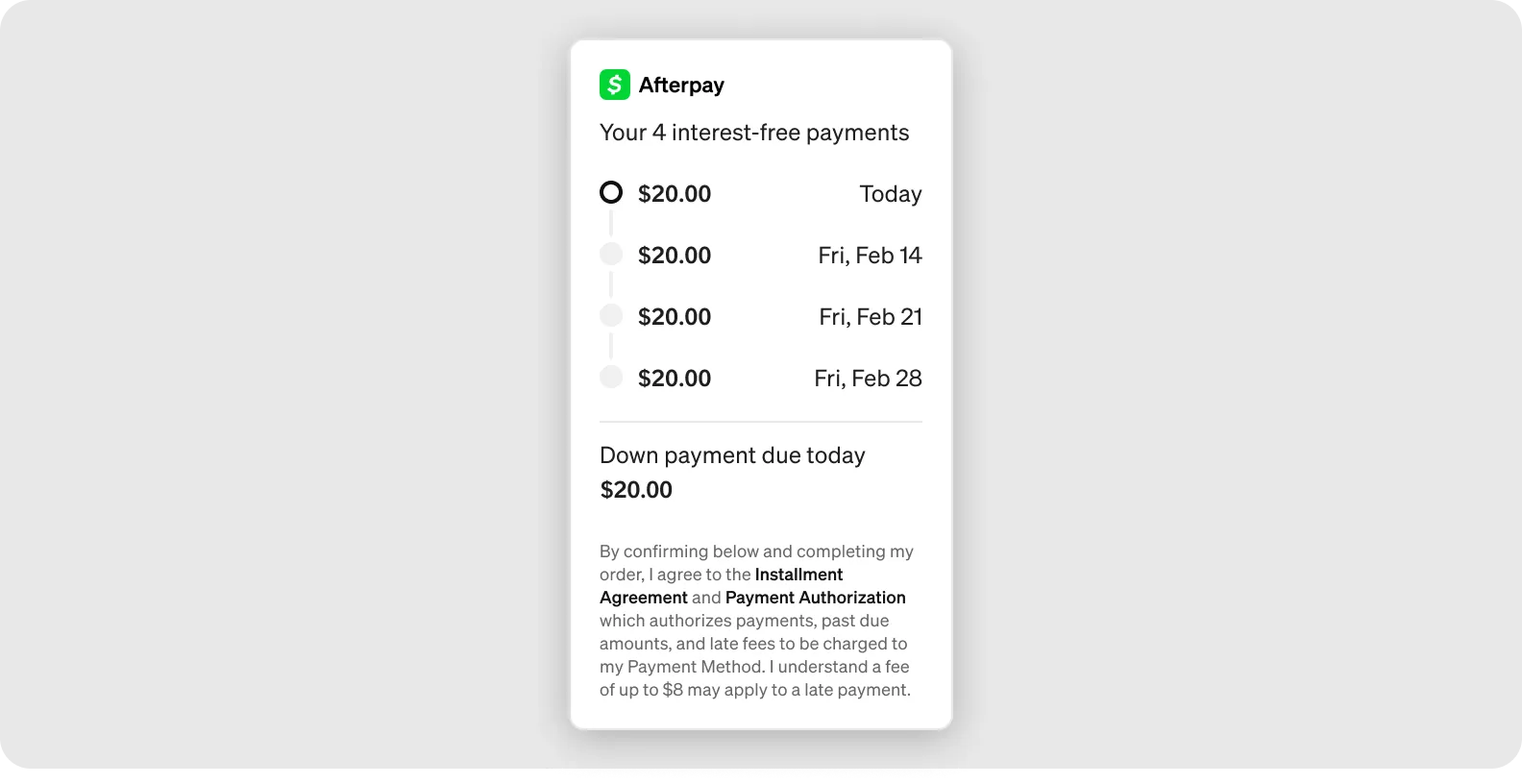
- The Afterpay checkout token to retrieve and render the payment schedule.
- The final order amount
Capturing payment with the connected widget
Because you can update the order after checkout has completed, the connected widget has unique considerations. When calling the /v2/payments/capture API, the payload must contain the required amount field plus additional properties. This allows Afterpay to verify that the final order amount and payment schedule match the calculated values from the corresponding order details. These properties are:
isCheckoutAdjusted: Indicates whether any changes have been made to the order since the initial creationitems: The list of order items if it has changedshipping: The shipping address if it has changedpaymentScheduleChecksum: The latest paymentScheduleChecksum retrieved from your widget’sonChangecall (see ‘Getting the widget’s state’).
amount doesn’t match the calculated amount (including shipping, taxes, etc.), or if the paymentScheduleChecksum doesn’t match the calculated payment schedule, the capture request will be rejected.Getting the widget’s state
After each update and on any other state changes, the onChange callback is called with an HTML event argument. At this point the widget’s state is retrieved from event.data, which will have the properties in the table:
We recommend using the isValid and amountDueToday states to update your checkout UI as described above, and persisting the paymentScheduleChecksum on your backend to be used when capturing. The widget itself informs customers what has gone wrong when isValid is false.
In addition to the onChange callback, these states are exposed as properties on the widget and can be accessed directly at any time, for example:
Handling widget errors
Any errors on the widget trigger the onError callback with an HTML event (see table below), and have a false isValid status.
If the onChange callback is activated and fails due to an error, the onError event is also triggered for convenience. In this case, a response to onError events is not needed, provided all onChange events are handled.
onError event.data properties table
If you are getting errors during the rendering of the widget, open the browser console. The console may display some additional error loggings to help identify some common integration misconfigurations.
Unconnected widget
Use the unconnected widget on your checkout page before the customer starts the Afterpay checkout flow. This version of the widget displays an estimated payment schedule based on the initial order amount; this is only an approximation based on the initial order total.
The unconnected widget requires a defined positive amount to calculate the estimated payment schedule.
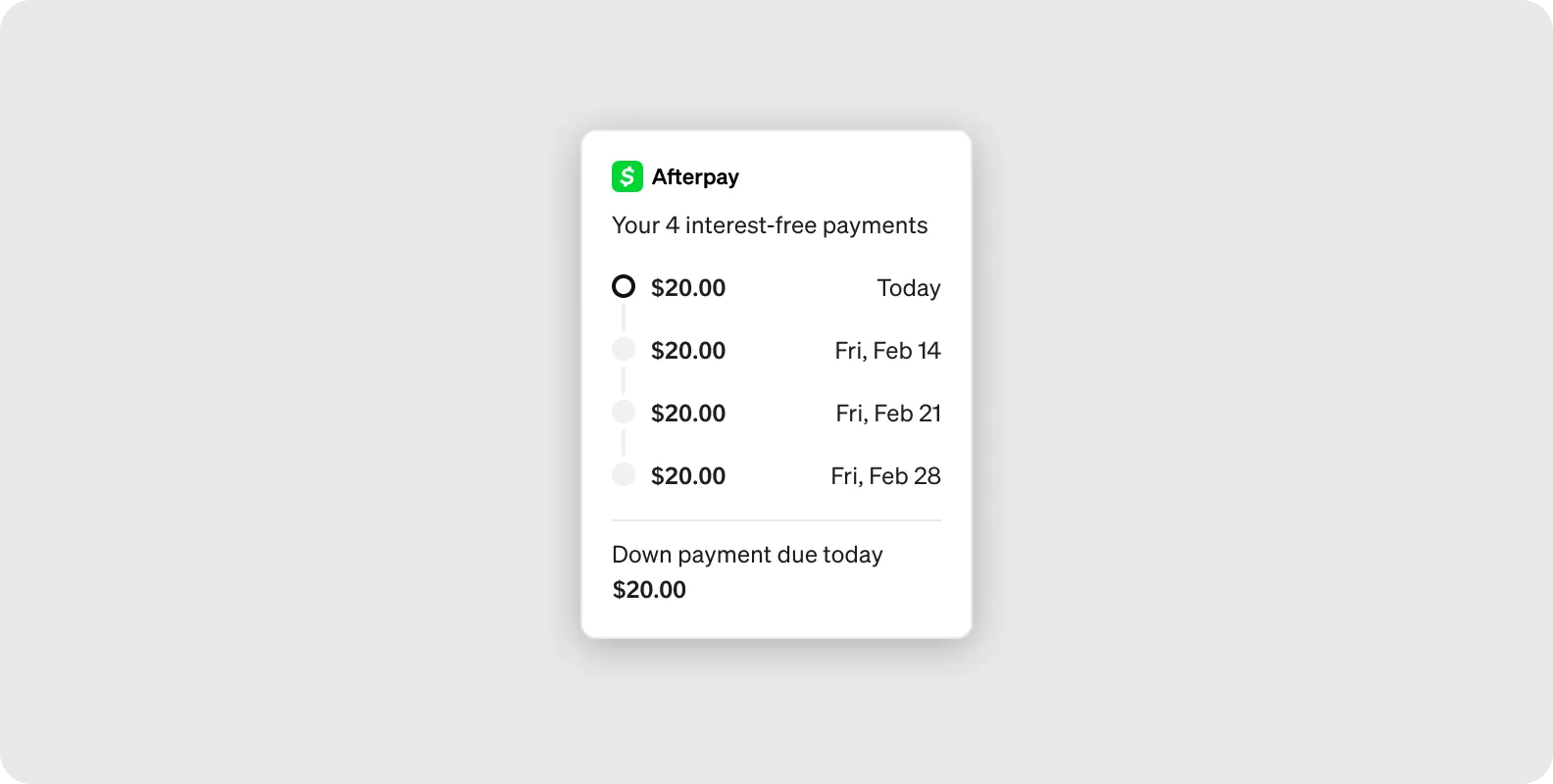
If the order total changes (due to shipping method, promo code, or cart contents), the widget must be notified of the new amount. Only call the update function after the widget’s onReady callback has been triggered.
With on file grant
You can use the widget when customers place an order with an existing Afterpay On File grant. This is helpful for customers, allowing them to see their payment schedule despite not going through the Afterpay checkout flow.
To display the widget:
- First, call the Create Grant Alias endpoint (/v2/grants/alias) to retrieve the payment schedule token.
- Pass the token to the widget.
- If there are changes to the order total, call the
updateAmountfunction to update the widget.
Always ensure that the currency is consistent throughout the entire checkout flow. For Cross Border Trade orders, the checkout widget displays the payment schedule and ‘Due today’ amounts in the customer’s currency, which may be different from the currency on your site. The capture amount must be in the same currency in which the checkout is initiated.
For example, you are an American merchant displaying a 100 USD order in AUD for an Australian customer on your site. When you start the Afterpay checkout, if you start the checkout by sending us the order amount in USD (e.g. 100 USD), then at capture the final order amount must also be in USD.
Likewise, if you initiate checkout by sending us the order amount in AUD post currency conversion on your side (e.g. 150 AUD), ensure that the capture amount is sent in AUD.
Styling the checkout widget
Standard widget
The default version of the widget displays accurate payment schedule information, the payment amount due today, and the legal disclaimer.
Here’s an example of how to initialize the standard widget, and a sample function for updating the amount to a new value.
Compact widget
This is a more compact version of the widget. It presents the same information as the standard widget, but takes up less space.
Here’s an example:
Style attributes
There is an optional style attribute that you can use to toggle particular features on or off in the widget. The current styles are:
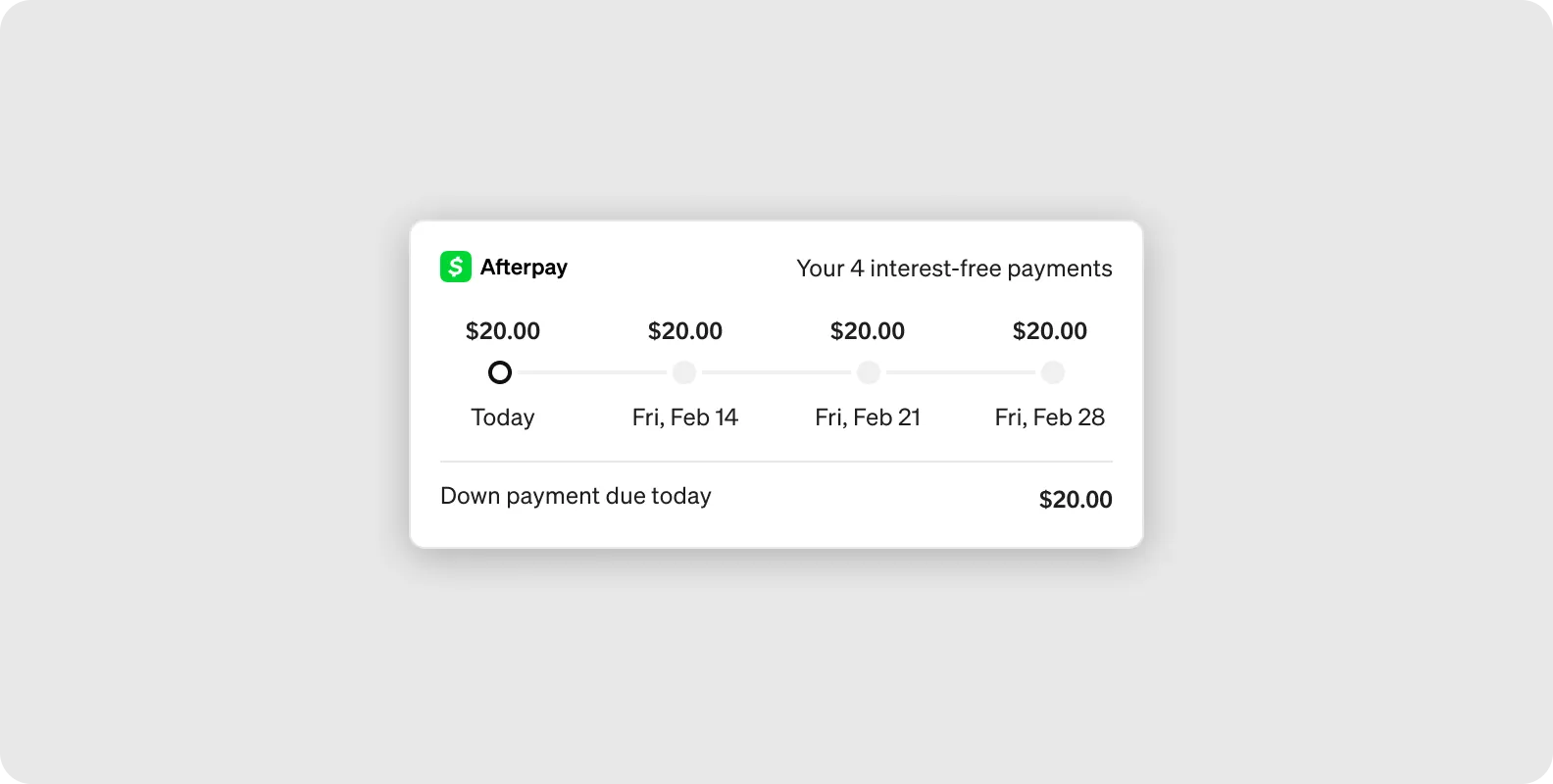
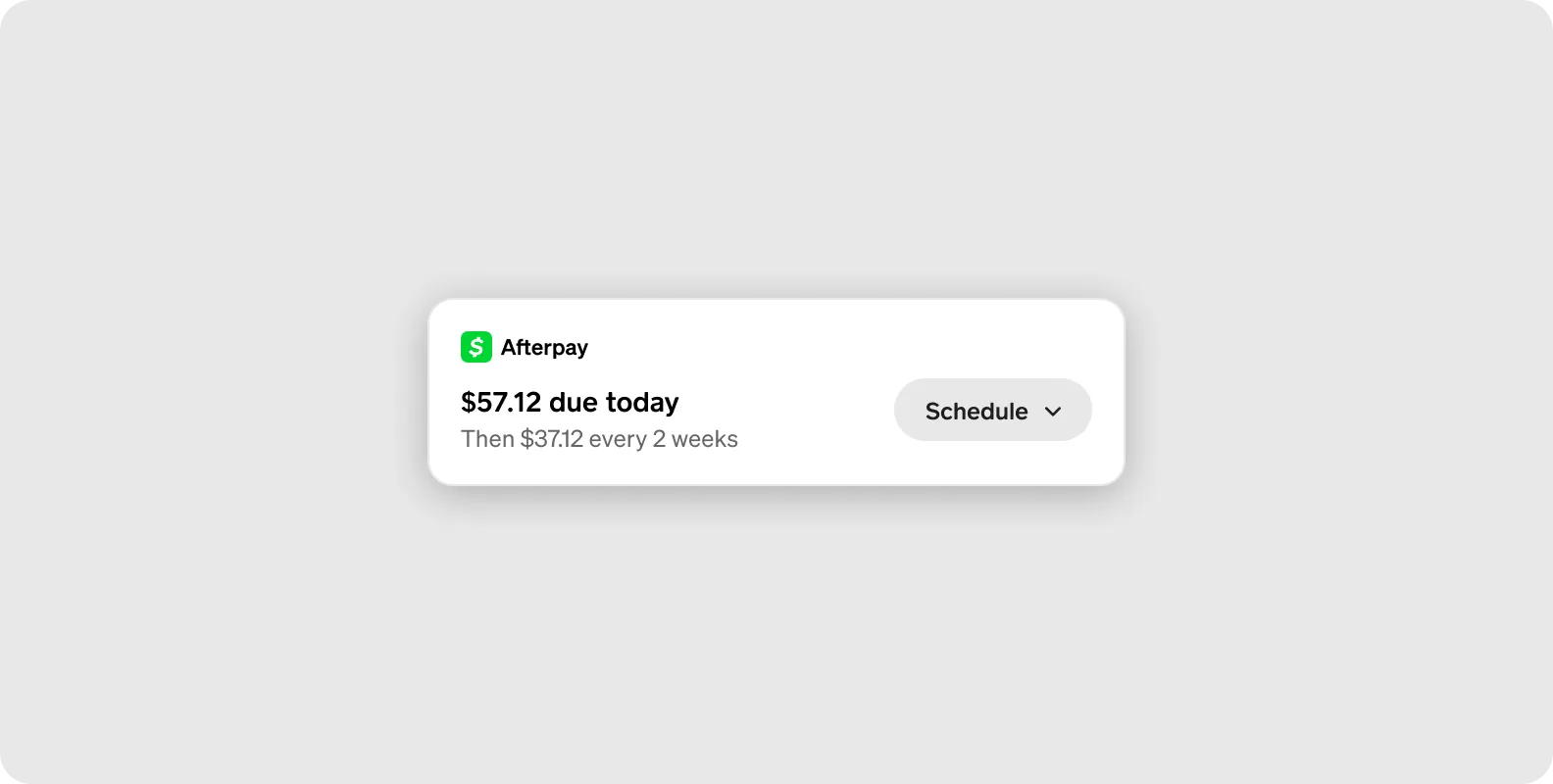
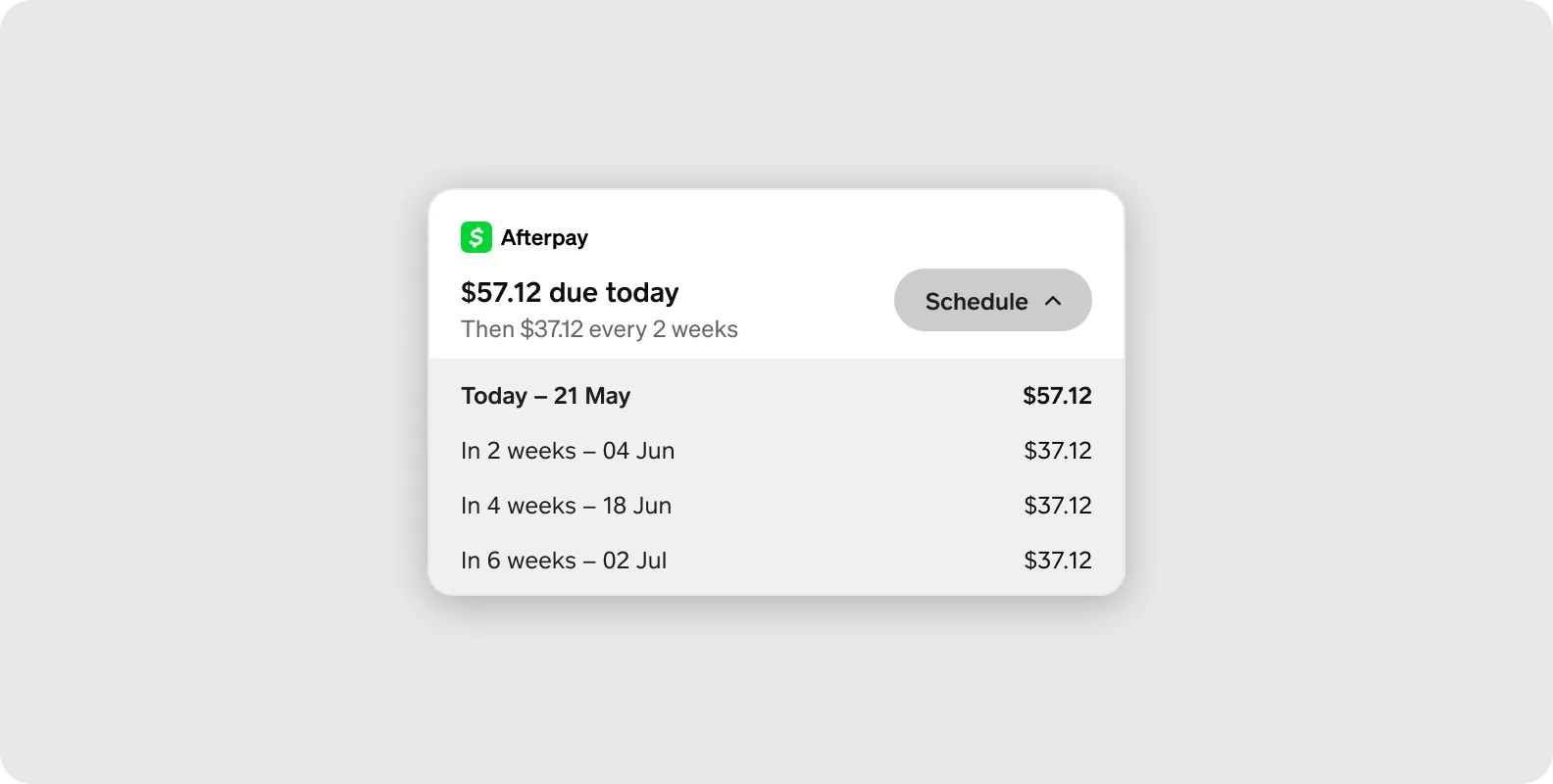
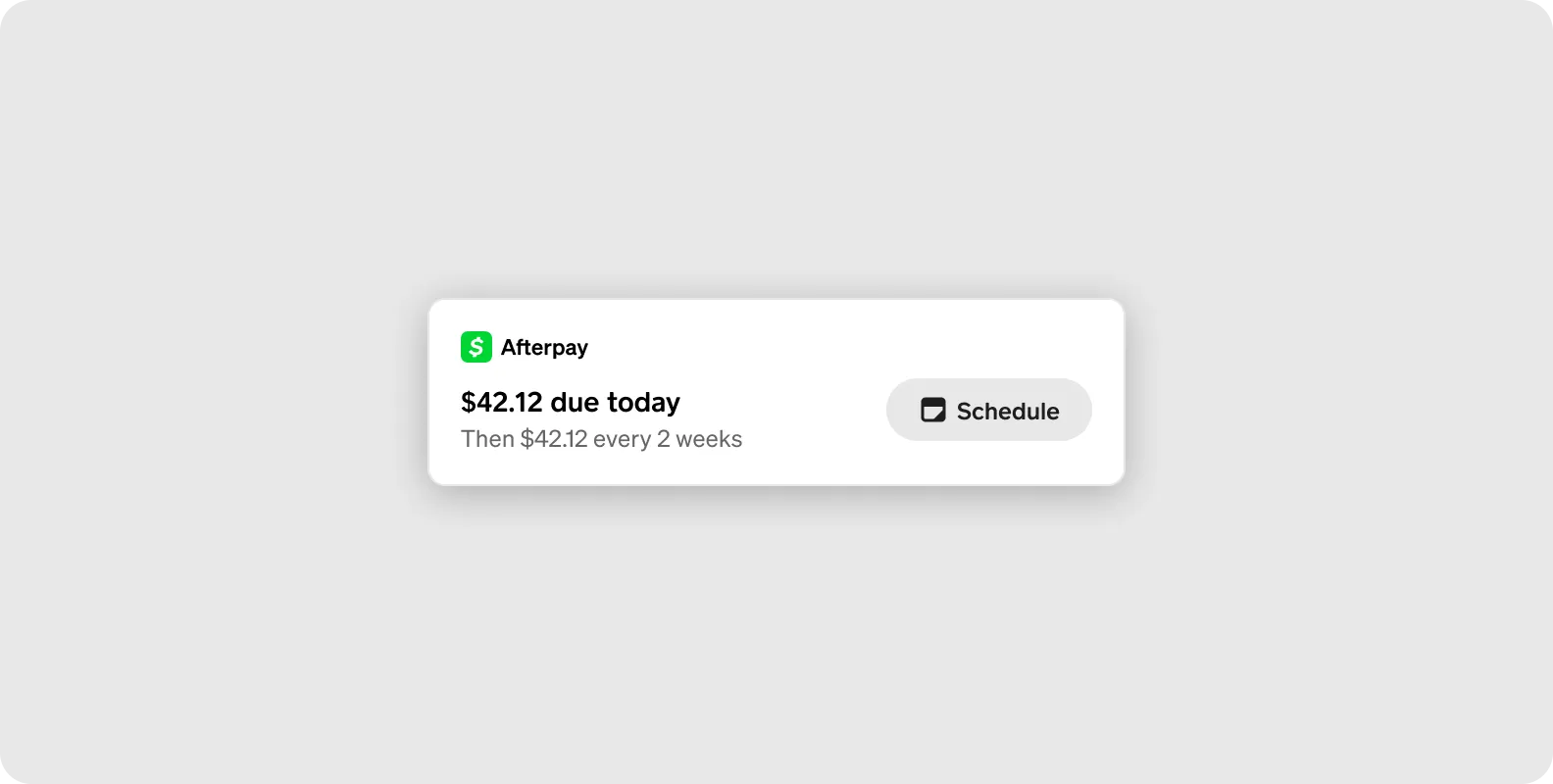
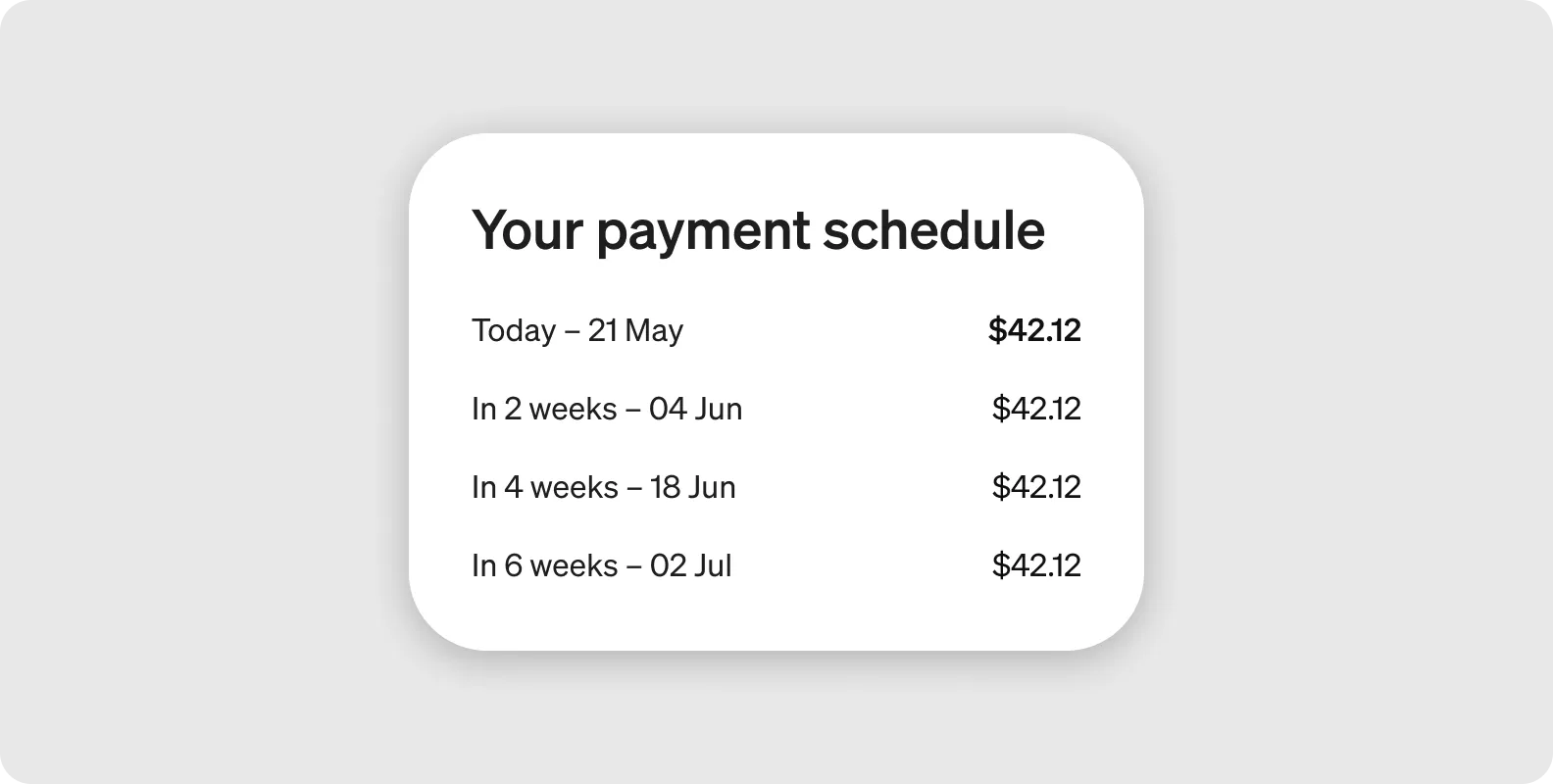
border- If false, the border around the widget container is removed. Default: trueheading- If false, the heading “Your 4 interest-free payments” is removed. Default: truelogo- If false, the Afterpay logo is removed. Default: truetheme(string) - allows you to customize the look of the widget. Following themes are available ‘CLASSIC’ | ‘TIMELINE’ | ‘COLLAPSIBLE’ | ‘MODAL’. Default: ‘CLASSIC’
Here are some theme examples:
Timeline
Collapsible
Collapsible (extended)
Modal
Modal (open)
Code example: