

Add Afterpay at Checkout
Before you start, ensure that you have Shopify installed and working.
The Shopify App Store listing and app logo will reflect the new Afterpay brand, while the payment app itself continues to be called Afterpay US. Your customers will see the updated branding at checkout.
For a list of requirements before you add Afterpay, see the Requirements section at the bottom of this page.
Overview
The Afterpay integration process can be completed in three stages:
Download the Afterpay US payment app
Do the following:
- Click here to download the Afterpay US payment app.
- When the Install app screen appears, click Install.
- Once installed, Afterpay US (New) appears in your list of apps.
Connect your Business Hub account
After you install the Afterpay US app, you are automatically redirected to the Business Hub to verify your merchant account.
Follow these steps to connect your account:
Step 1: Log into Business Hub
Log into your Business Hub user account.
If you have trouble accessing your Business Hub account, try resetting your password. If you need an account to be created, contact your team’s main internal onboarding contact.
Step 2: Select your merchant account
- From the dropdown menu, select the merchant account that should be associated with your storefront.
- Ensure that this is the correct account for your specific Shopify store.
Step 3: Complete connection
- Click the Connect button to link your Business Hub merchant account with Shopify.
- Wait for the connection process to complete.
- Once you have a successful connection, you’re automatically returned to Shopify.
Confirm and activate
After successfully verifying your Business Hub merchant account, you return to Shopify. A screen appears with two toggle switches and a More actions menu. Do the following:
-
Activate the payment gateway. Keep Test mode inactive, and click Activate. This screenshot shows the result:
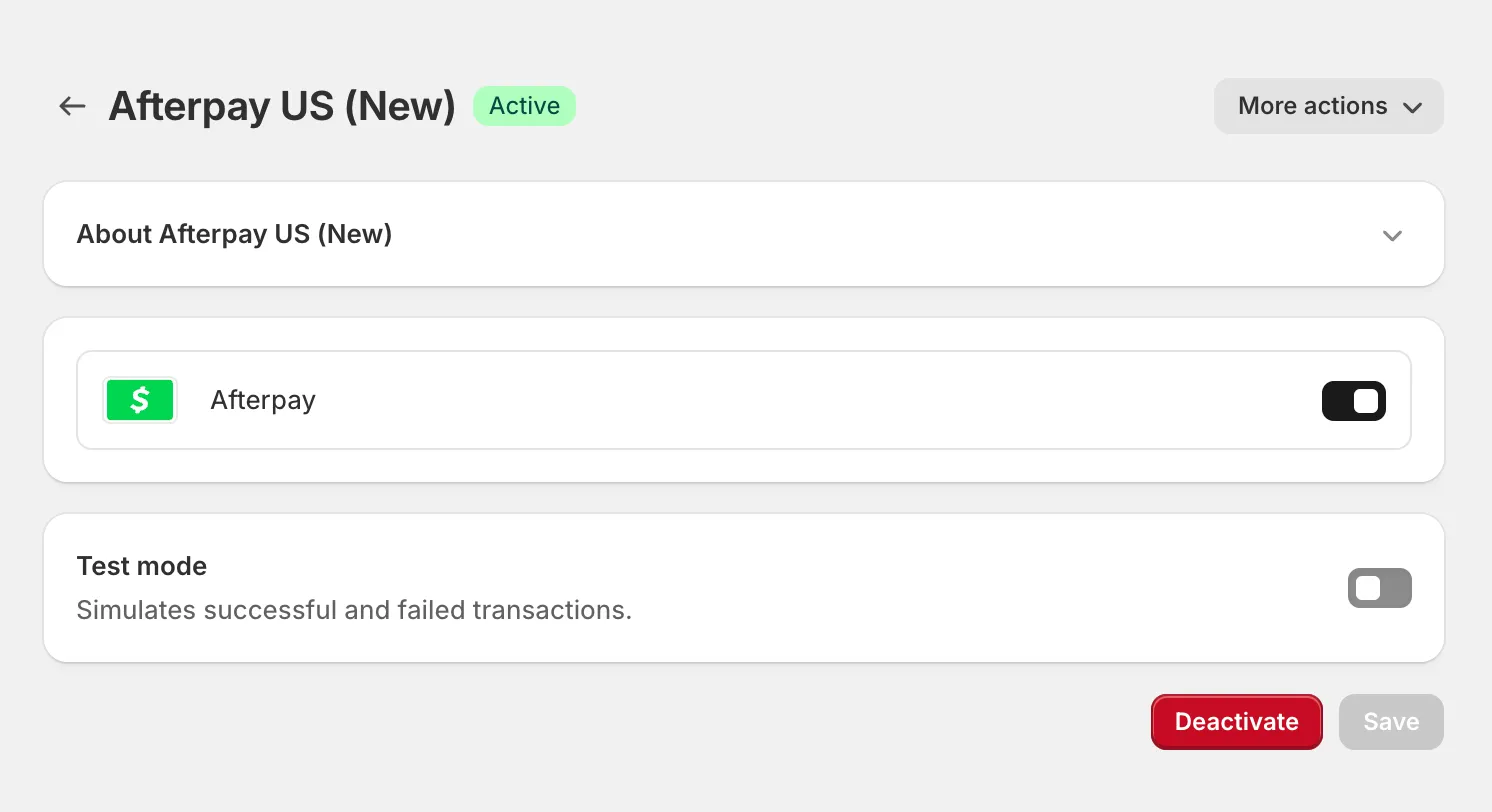 Do not enable Test mode. If you enable Test mode, the integration fails. The Enable test mode function is only for use on dedicated test websites. Contact your Afterpay Account Manager if you need test credentials.
 -
Go to your online store and verify that Afterpay is a checkout option.
Managing merchant integration
If you ever need to change which merchant account is connected to your Shopify store, it’s a simple process:
- In your Shopify admin, go to Settings → Payments
- Click into the Afterpay US (New) payment app
- Then, click More actions → Manage
- This will take you back to the Business Hub where you can select a different merchant account
- Choose the new account you want to use and click Connect
That’s it! The new merchant account will now be connected to your Shopify store.
Requirements
To avoid issues installing the new Afterpay US app, check that you have Shopify installed and working.
Make sure that your company or organization meets the following requirements:
Your business address is in one of the the following:
- Australia
- Canada
- Hong Kong SAR
- New Zealand
- United Kingdom
- United States
You must ship to the United States.
You must accept USD (United States Dollars) as a currency.