

Shopify Migration
If you’realready using the Afterpay US (New) payment app, no action is required. The new Afterpay branding will be updated automatically. Here’s how it should appear:
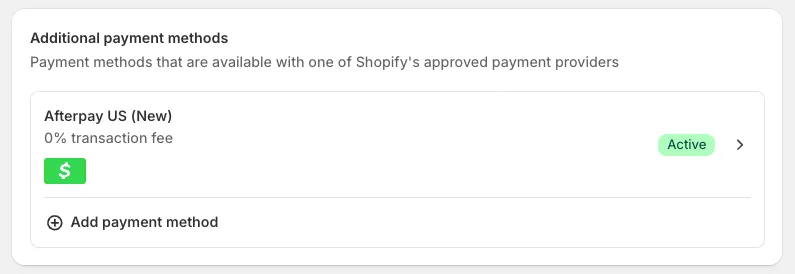
If you haven’t migrated from the Afterpay (New) payment app to Afterpay US (New), see Migrate to the Afterpay US App below.
Afterpay US Messaging
Messaging automatically works if you use the Afterpay On-Site Messaging app or the liquid code snippet from the Afterpay technical guide. No work is needed, as the messaging is automatically enabled.
Messaging uses settings from Afterpay Messaging. It automatically displays the correct branding per region.
Brand Assets
There are new Afterpay brand assets to use at checkout and across your site. See the Brand Assets page in this guide for these new assets.
The table below has examples of the changes:
| Afterpay | Afterpay | |
|---|---|---|
| Logos |  |  |
| Buttons |  |  |
Any custom messaging updates must be reviewed by your Account Manager.
Afterpay Messaging
Messaging automatically works if you use the Afterpay On-Site Messaging app, or the liquid code snippet from the Afterpay technical guide. No migration work is needed as the messaging is automatically enabled. Monitor your email for advance notice of this automatic update. The messaging uses settings from Afterpay Messaging and automatically displays the correct branding per region.
See the table below for an example of the changes:
| Afterpay | Afterpay |
|---|---|
 |  |
The automatic Messaging update includes changes to learn more/lightbox asset if you use that.
If you use elements of Afterpay Messaging but not the standard Onsite Messaging Widget, then update the Afterpay elements with the latest Afterpay elements. See the Brand Assets section above.
Any custom messaging updates must be reviewed by your Account Manager.
Migrate to the Afterpay US app
If you haven’t migrated to the Afterpay US app yet, follow these two steps:
- Install the Afterpay US payment app.
- Deactivate the Afterpay payment app you’d previously been using.
Install the Afterpay US App
- Click here to download the Afterpay US payment app.
- When the Install app screen appears, click Install.
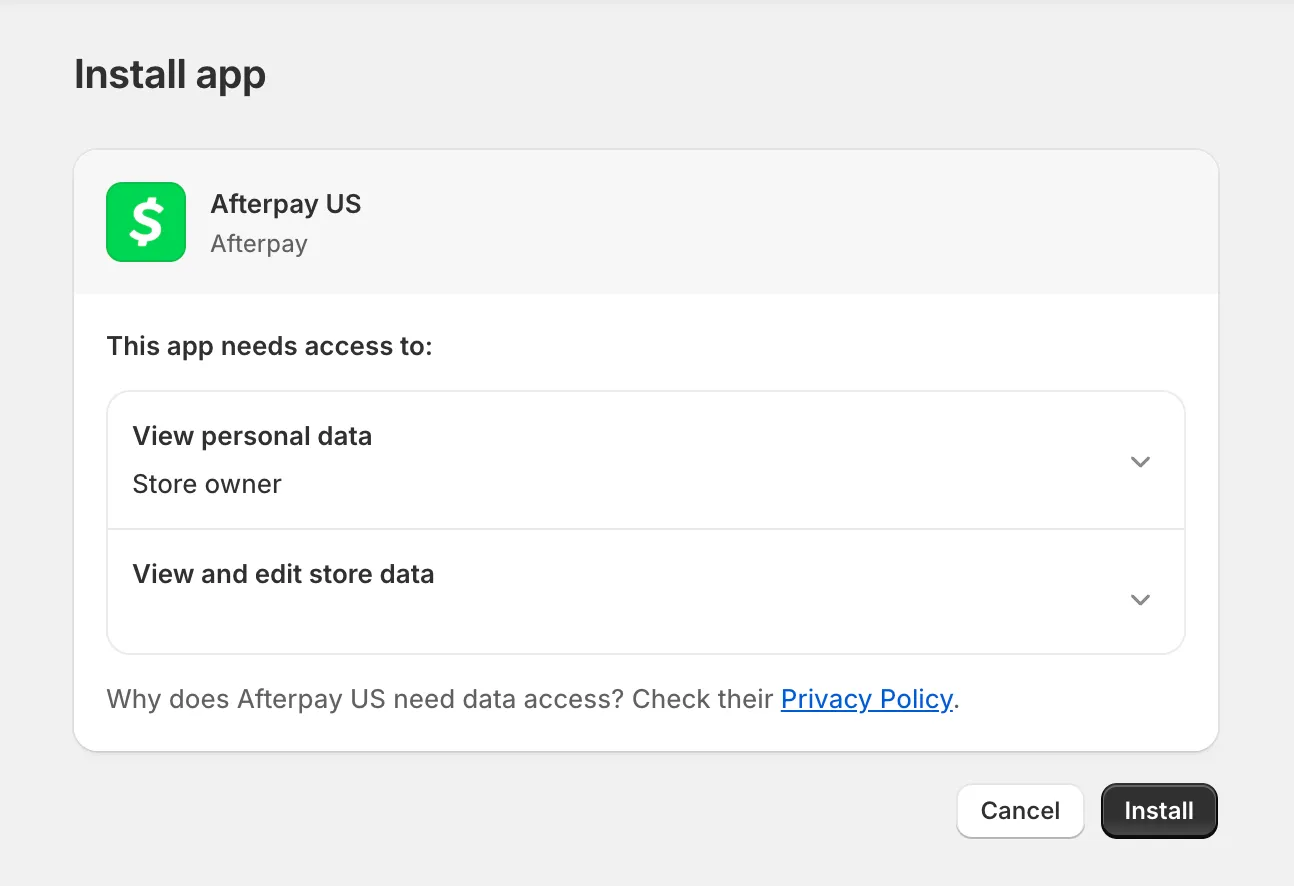
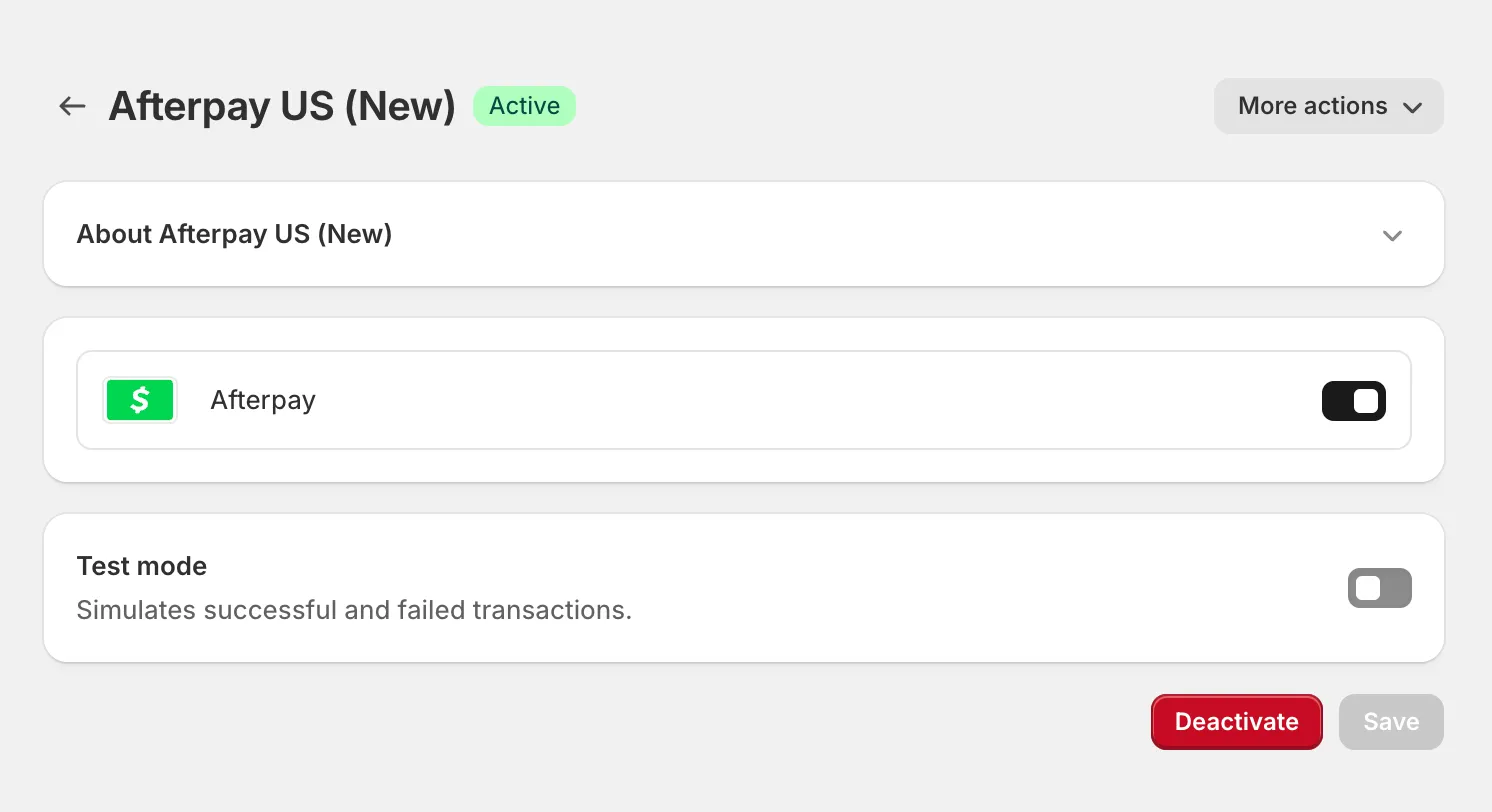
- Once installed, Afterpay US (New) appears in your list of apps, ready to activate. Click Activate.
Once Afterpay US (New) appears with the green ‘Active’ sign next to it, your customers can immediately use Afterpay US to make payments. You don’t need to do any further work to configure the app.
Deactivate the previous Afterpay app
The final task is to deactivate the Afterpay (New) payment app in Shopify. Despite its name, this is the app you’d previously been using.
-
Go to Shopify Admin.
-
Go to Settings, then select Payments.
-
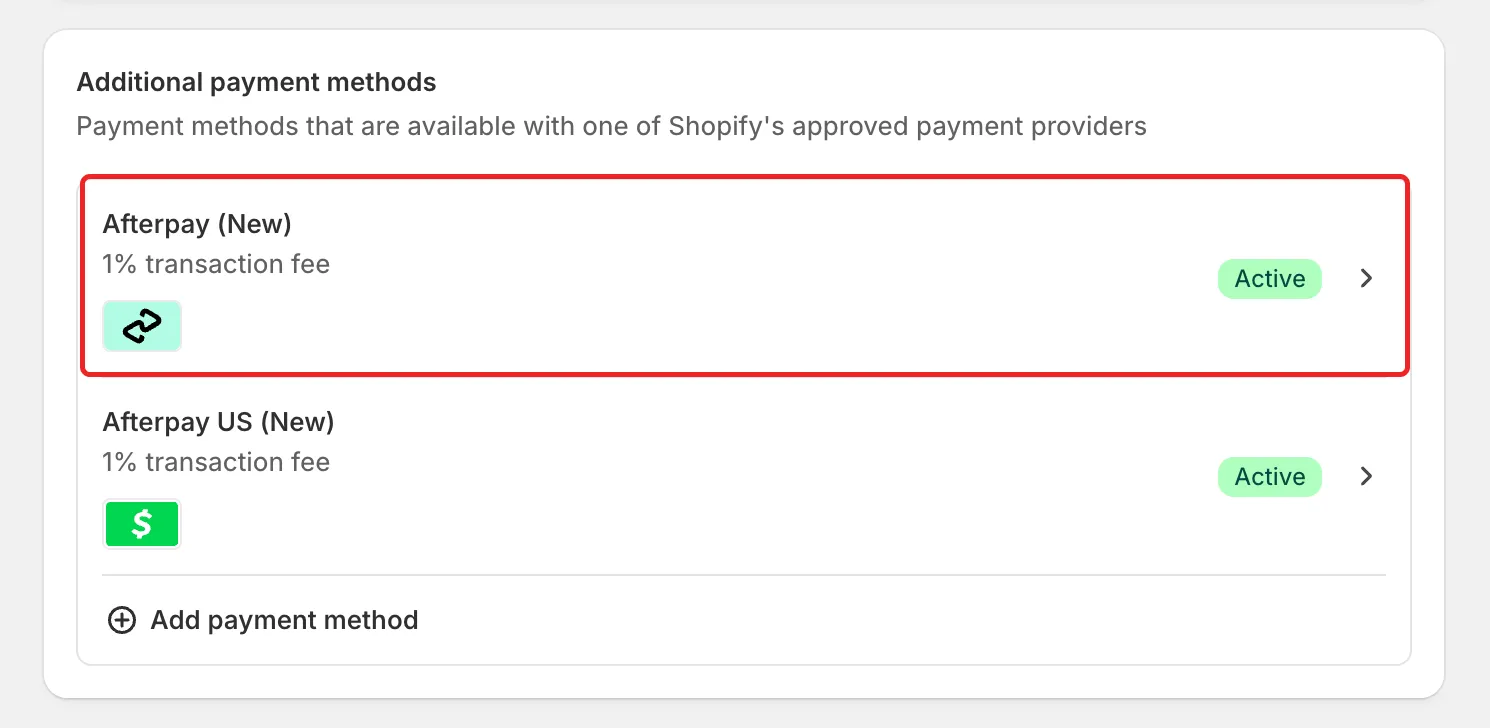
Under Additional payment methods, select Afterpay (New). Make sure not to select Afterpay US (New), which you just installed.
-
On the Afterpay (New) screen, click Deactivate, then click Deactivate again to confirm your choice.
-
Return to your list of additional payment methods. Make sure that Afterpay US (New) is listed as an active payment method; Afterpay (New) shouldn’t be on the list.
New payment method name
The Afterpay US payment app uses a new payment method name: Afterpay US (New).
If your store has post-order processes that rely on the payment method name—like Shopify Flows or custom reporting—update any references from Afterpay (New) to Afterpay US (New).
This only applies to merchants with custom backend systems that use the payment method name to trigger workflows.
FAQs
If you have a technical question on the migration, see our FAQs for the Migration page or below for Shopify-specific FAQs.
Refunds - I’m having trouble completing a refund, what should I do?
If the payment was taken on the Afterpay payment gateway and you have uninstalled the app, you must reinstall the app. Follow these instructions to install the Afterpay app. You will not need to configure your Afterpay app again.
Please do not activate the Afterpay app (leave it deactivated).
Cross Border Trade (CBT) - are all customers available to use Cross Border Trade on my Shopify store?
Cross Border Trade is available to Afterpay customers. It is not yet available to Cash App customers new to Afterpay.
Before the customer checks out, they see the appropriate brand for your shop’s region. When the customer checks out, they see the appropriate brand based on the region associated with their Afterpay account.
For example, if your store is set in US, and your customer is based in the Canada, they will see the following brands:
-
On your Shopify store: Afterpay
-
During Afterpay checkout: Afterpay
Help! I accidentally uninstalled the Afterpay (New) app.
If you uninstalled the Afterpay (New) payment app when migrating to the Afterpay US app, you must reinstall Afterpay (New) to manage outstanding Afterpay orders placed before the migration.
Follow these steps:
-
Use this link to log in to your Shopify account and reinstall the app: Reinstall Afterpay (New) App
-
Once you reinstall the app, don’t activate it. Reinstalling without activating lets you manage transactions that occurred before you migrated.
-
Now that the app is reinstalled, you can issue refunds for pre-migration Afterpay orders, capture payments for pending transactions, and void payments as needed.
Afterpay appears twice at checkout
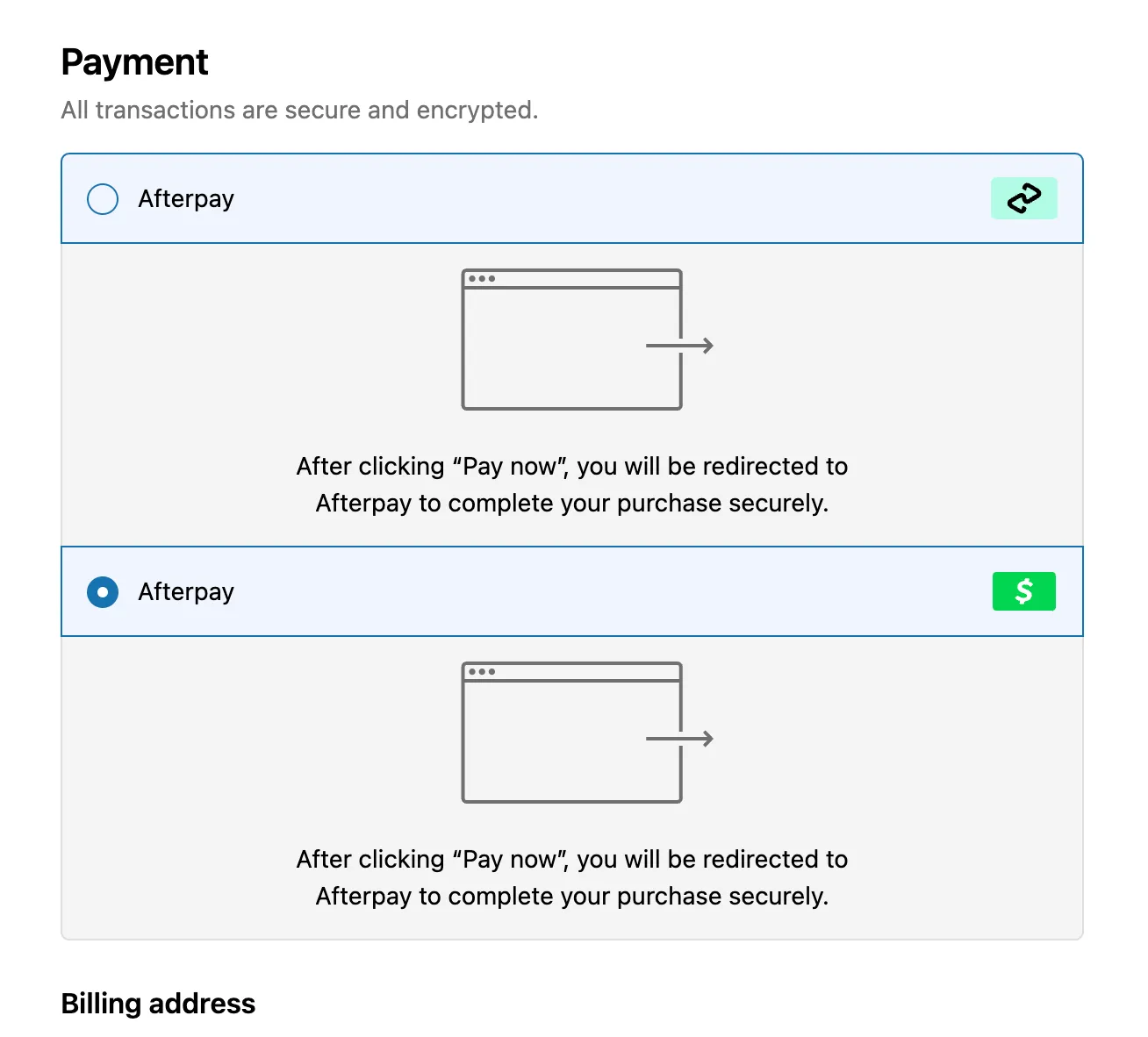
If Afterpay appears twice at checkout (as shown above), make sure to deactivate the Afterpay (New) app. Only the Afterpay US (New) app should be active. Follow the instructions to deactivate the previous Afterpay app.
Update the Afterpay Banner
If you use the banner as part of your messaging, follow the instructions below to update it:
-
On Shopify, open the code editor to edit the theme files.
-
In theme.liquid, delete
{% section 'afterpay-banner' %}. -
Delete the afterpay-banner.liquid file.
-
Follow the steps here to add the Afterpay banner to your theme.
Requirements
To avoid issues installing the new Afterpay US payment app, check that you have Shopify installed and working.
Make sure that your company or organization meets the following requirements:
Your business address is in one of the the following:
- Australia
- Canada
- Hong Kong SAR
- New Zealand
- United Kingdom
- United States
You must ship to the United States.
You must accept the currency USD (United States Dollars).