

Checkout widget
WidgetView shows the customer’s Afterpay payment schedule. Show it when the order total can change after the customer finishes the Afterpay checkout, for example because of shipping costs or promo codes. The widget also tells the customer about anything that blocks the purchase, such as going over their Afterpay limit.
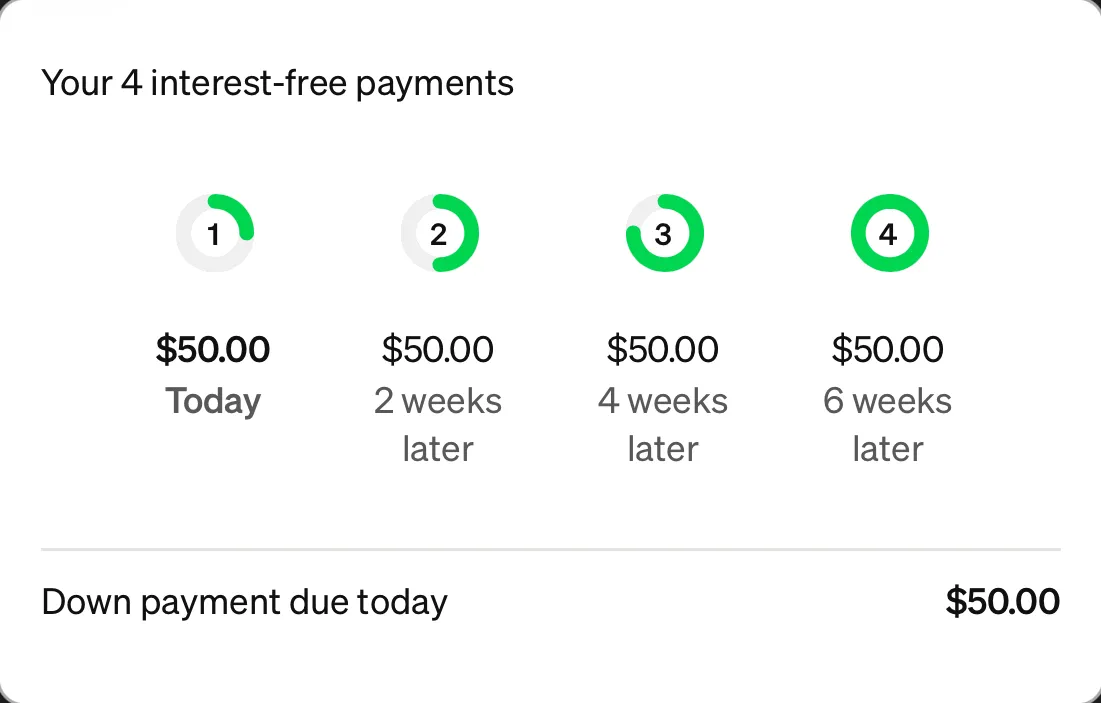
WidgetView is a UIView that renders the Afterpay web widget in a web view. Its height adjusts to fit the widget, and the widget fits any container at least 300 points wide.
Create the widget
Set the merchant configuration first. Both initializers throw WidgetView.WidgetError.noConfiguration if you haven’t set one.
After checkout
Before checkout
After a checkout, create the widget with the order token from the checkout result. The widget looks up the order and shows its schedule.
Both initializers take an optional style parameter. Set logo and heading to true to show the Afterpay logo and heading. Both default to false.
The widget has a border and rounded corners on its layer. Change them to match your app:
Update the order total
When the order total changes, send the new total to the widget. Use the same currency as your configuration.
Get the widget status
Before you capture the payment, check that the widget is valid. The completion handler runs on the main thread.
When the widget is valid, its status includes the amount due today and the payment schedule checksum. The checksum identifies the payment schedule that the customer saw. It’s available only for a widget created with a checkout token. Pass it as paymentScheduleChecksum when you capture the payment.
Respond to widget events
To be notified when the widget changes, implement WidgetHandler and register it with Afterpay.setWidgetHandler(_:). The SDK holds the handler weakly, so keep a strong reference to it.
If your app uses Combine, use WidgetEventPublisher as the handler. It publishes the same events as ready, changed, errors, and failures: